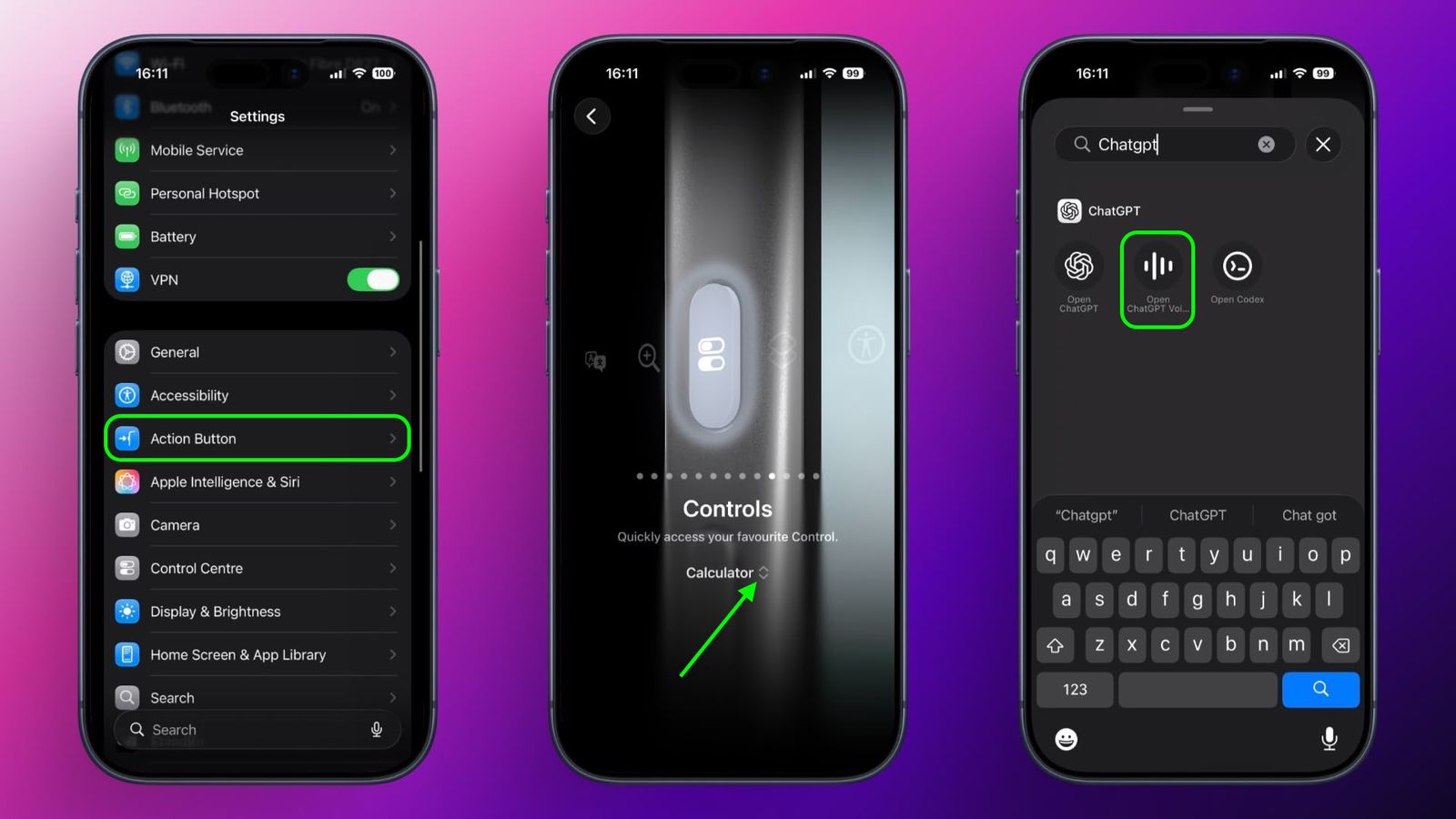
Apple’s Action Button on the iPhone (iPhone 15 Pro and later) has unlocked a completely new world of customization — but many users still assign it to simple tasks like opening the camera, toggling silent mode, or turning on the flashlight.
That’s fine… but the Action Button can do something much more powerful.
You can turn it into a personal AI assistant powered by ChatGPT.
Instead of tapping an app and typing prompts manually, a single button press can:
- Ask ChatGPT questions
- Get AI-generated summaries, translations, reminders, or travel plans
- Log ideas and notes instantly
- Turn speech into text and feed it to ChatGPT
- Send information back to you automatically
In other words, you can carry the full power of ChatGPT in your pocket — without even unlocking your phone.
🔧 What You Need Before You Start
You can set this up in two ways:
| Method | Requirements | Best For |
|---|---|---|
| Official ChatGPT App Shortcut | ChatGPT app installed | Fast and easy setup |
| API via Shortcuts | OpenAI API key | Custom workflows and automation |
Below is the easiest method using the official ChatGPT iOS app.
📌 How to Make ChatGPT Your Action Button Assistant
- Open the Shortcuts app on your iPhone
- Tap + to create a New Shortcut
- Tap Add Action → Apps → ChatGPT
- Choose how you want ChatGPT to respond, for example:
- Start Voice Conversation
- Ask Prompt
- Send Clipboard to ChatGPT
- Create Summary
- Configure it based on your preference
- Save the shortcut (give it a name like “AI Assistant”)
- Now go to Settings → Action Button → Shortcuts
- Select the shortcut you just created
That’s it — your Action Button now launches ChatGPT instantly.
🎤 Recommended Shortcut Ideas
Here are a few powerful shortcut setups that make the Action Button even more useful:
| Shortcut | What It Does |
|---|---|
| Voice to ChatGPT | Press button → Speak → AI answer in seconds |
| Smart Note Taker | Converts speech to text → Sends to ChatGPT to organize and email |
| Writing Coach | Dictate texts or emails → ChatGPT rewrites them professionally |
| Quick Translator | Speak in any language → ChatGPT replies in your chosen one |
| Instant Task Planner | Tell ChatGPT what you need → Outputs a checklist or schedule |
You can even chain multiple apps together — for example:
Action Button → Voice note → ChatGPT summary → Saved to Apple Notes
or
Action Button → Ask for weather + reminders + news → ChatGPT replies as a morning briefing
🚀 Why This Is a Game-Changer
Turning the Action Button into a ChatGPT launcher means:
- No typing
- No rummaging through apps
- No switching screens
- No distractions
One button press becomes:
“ChatGPT, help me think. Help me write. Help me plan. Help me remember.”
It’s the closest thing to having Jarvis in your pocket.
🔥 Pro Tip: Set a Different ChatGPT Mode Depending on Press Type
If you use double-press and long-press Shortcuts, you can map different AI modes:
| Press Type | What It Triggers |
|---|---|
| Single Press | Voice ChatGPT assistant |
| Double Press | Instant note → Auto saved |
| Long Press | “Ask ChatGPT anything” prompt |
Three actions, one button.
🧠 Final Thoughts
The Action Button was designed to be personal.
Pairing it with ChatGPT makes it powerful.
It turns your iPhone from a device you use into a device that responds — instantly helping you work, organize, create, and plan with almost no friction.
If you want the most futuristic version of the Action Button, ChatGPT is the smartest thing you can assign to it.